Bookkeeping is a team sport with a separation-of-duties rule. Bizdivers roles let you give each person exactly the access their job needs.
Send an invitation
- Go to System → Settings and open the Team tab.
- Click Invite User.
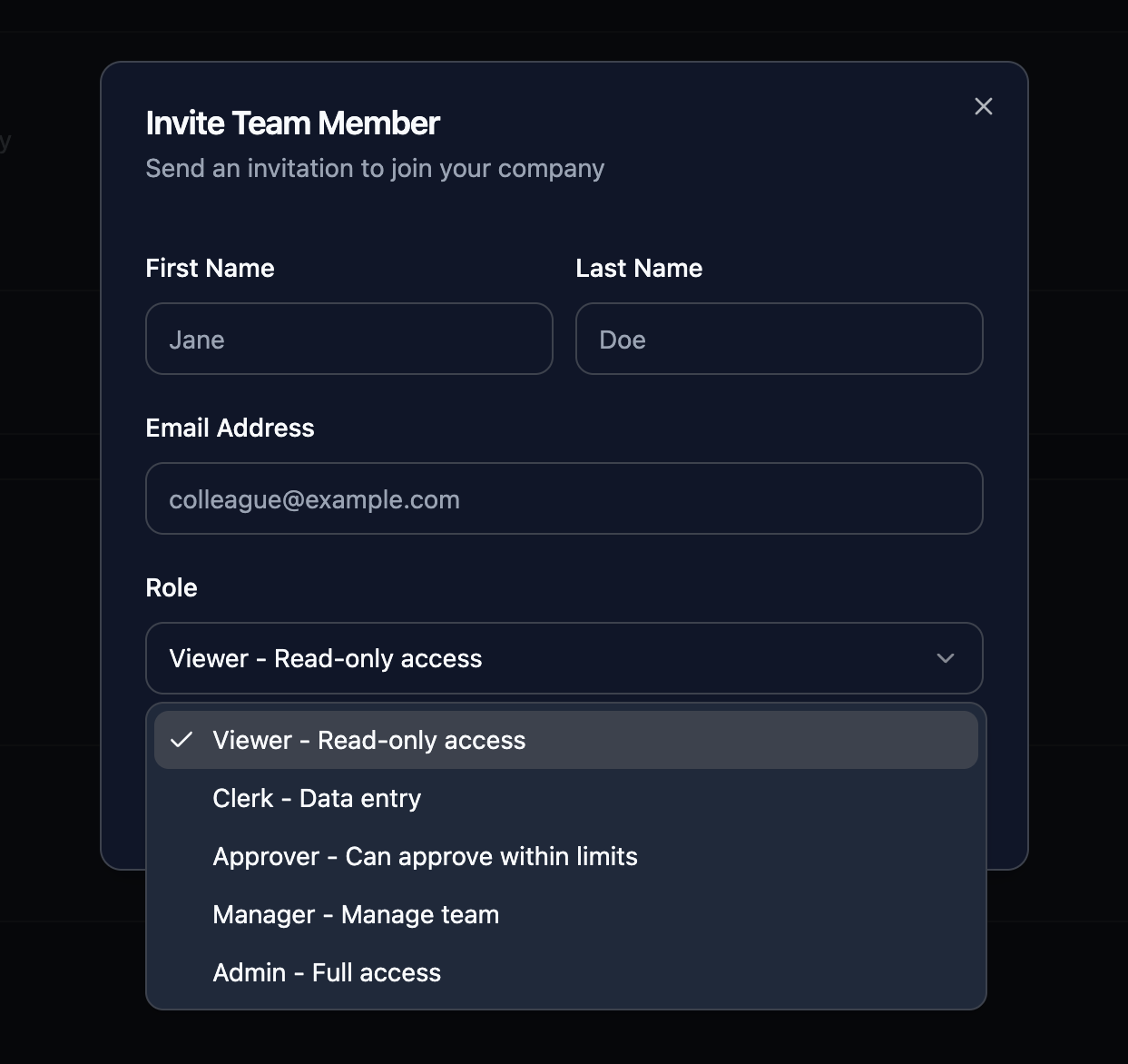
- Enter their first name, last name, and email address, and pick a role:
- Viewer: read-only access
- Clerk: data entry
- Approver: can approve within limits
- Manager: manage team
- Admin: full access
- Click Send Invitation.
Roles map directly onto approval routing. An invoice within the L1 threshold needs an Approver or above; anything past the L2 threshold needs a Manager or above. Admin is not a higher approval tier: it carries the same approval rights as Manager, plus the ability to manage users. See Review and approve an invoice for how the thresholds work.
What your teammate sees
They receive an email with an invitation link showing the company they're joining and their role. If they already have a Bizdivers account they click Accept invitation; otherwise they sign up first, then accept. After that they're in. No setup wizard to repeat, just two-factor enrollment to keep the account safe.
Managing the roster
- The Team Members table shows everyone with their role and join date. Change a role any time with the inline dropdown, or remove someone with the trash icon.
- Pending Invitations lists outstanding invites with their expiry. Cancel one with the X if it was sent in error.